
Quick links:
| Overview | Stripe and GoCardless |
| Problem Payments dashboard | Troubleshooting |
| Email notifications | Related articles |
| Manually resolve a failed/cancelled payment |
Overview
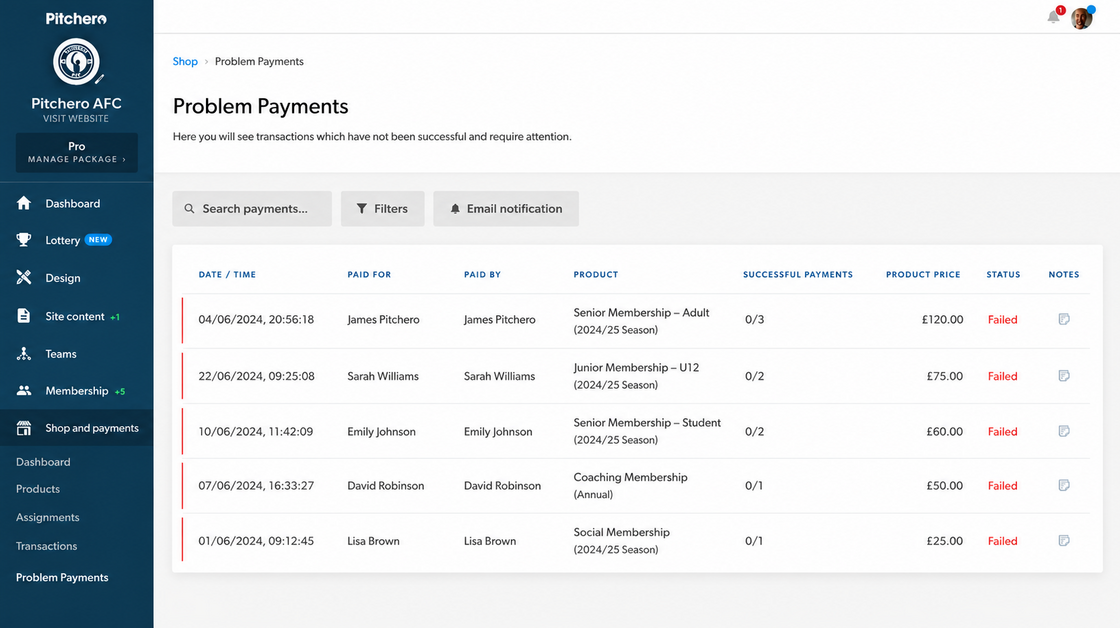
Reduce the time spent managing payment issues with a central dashboard that highlights failed payments, tracks collection progress and improves visibility across your club.
The Problem Payments area in the club admin dashboard brings together all failed and cancelled payments into one central location, making it easier than ever to stay on top of outstanding issues.
Problem Payments dashboard
The Problem Payments page is located in the Shop and Payments area of the club admin dashboard and is available
Step-by-step guide:
- Go to your club admin dashboard
- Click 'Shop and Payments' in the left-menu
- Click 'Problem Payments' in the sub-menu
A list of failed/cancelled payments will show on the page including the following details:
- Date/time the payment was expected
- Paid for and paid by names
- Product and variant names
- Number of payments completed for the member's assignment and the number of payments expected to be completed (to date)
- Price of the failed payment
- Status; Failed or Cancelled
Email notifications
To help clubs stay proactive, Webmasters can now subscribe to automated reports (daily, weeklyor monthly) from the Problem Payments page.
Step-by-step guide:
- Go to your club admin dashboard
- Click 'Shop and Payments' in the left-menu
- Click 'Problem Payments' in the sub-menu
- Click 'Email notification' towards the top of the page
- Select the report cadence; daily, weekly, monthly
- Click 'Save'
Confirmed Webmasters with access to the Shop and Payments area will receive the report email.
Top Tips:
While the club can enable email reports within the club admin dashboard, the member will separately be contacted via email regarding their unsuccessful payment(s), providing them with details of the payment missed, the reason provided by the payment provider, and actions that the member can take (e.g. check/update their card details, or contact their bank).
See the links below for members:
- Manage cards for future purchases with the club
- Manage cards for an active subscription with the club
The club may separately wish to contact the member regarding the failed payment to provide advice and to best understand the member's situation.
Please note:
To change the email reporting frequency, click 'Email notification' on the Problem Payments page, select a different option and click 'Save'.
To stop the email report, click 'Email notification' on the Problem Payments page, and click 'Disable notifications'.
Manually resolve a failed/cancelled payment
The Problem Payments dashboard shows all payments with a status of failed or cancelled. This includes some older payments that are no longer collectable via the payment provider.
The club can manually mark the failed/cancelled payment as resolved to remove it from the default via on the Problem Payments dashboard.
Mark a failed/cancelled payment as resolved
Step-by-step guide:
- Go to your club admin dashboard
- Click 'Shop and Payments' in the left-menu
- Click 'Problem Payments' in the sub-menu
- Find the member's payment you wish to mark as manually resolved and click 'Manage' on the right-hand side of the page
- In the overlay, enter a reason for resolving the member's failed/cancelled payment
- Click 'Resolve'
The member's failed/cancelled payment will no longer show on the Problem Payments dashboard. The club can use the filters on the page to include manually resolved payments.
Please Note:
Manually resolving a member's failed/cancelled payment on the Problem Payments dashboard will not make any alterations to the member's subscription or assignment.
The club may separately need to cancel the member's subscription or mark the assignment as Paid.
For further guidance, see links to the related articles below:
Restore a failed/cancelled payment previously marked as resolved
Step-by-step guide:
- Go to your club admin dashboard
- Click 'Shop and Payments' in the left-menu
- Click 'Problem Payments' in the sub-menu
- Click 'Filters' towards the top of the page
- In the sidebar, click 'Resolved payments'
- Select 'Show resolved payments'
- Click 'Apply filters'
- Find the member's payment row you wish to restore on to the Problem Payments dashboard and click 'Manage' on the right-hand side of the page
- Click 'Restore'
Stripe and GoCardless
It is important to know what the payment provider is doing behind-the-scenes) to collect payments from members, including payments that have initially failed.
Stripe Connect Express accounts have an out-of-box retry schedule enabled, while GoCardless and Stripe (legacy) accounts can be customised by the club (though retries may not be enabled by default).
Stripe Connect Express
For clubs collecting payments via Stripe Connect Express (SCE), Stripe will make 8 attempts to collect a member's instalment/recurring payment (except for the first payment for the instalment/subscription which needs to be collected within 24 hours of the member's purchase).
In practice, this has an 80% success rate of collecting the payment from the member.
The retry schedule is enabled on all SCE accounts within the Pitchero network.
GoCardless
For clubs collecting payments via GoCardless, the retry schedule is based on the club's GoCardless settings. We advise the club to check the GoCardless dashboard or contact GoCardless directly for assistance.
Stripe (legacy)
For clubs collecting payments via Stripe Standard (legacy), the retry schedule is based on the club's Stripe settings. We advise the club to check the Stripe dashboard or contact Stripe directly for assistance.
Troubleshooting
This section covers common troubleshooting queries:
- Unable to access the Shop and Payments area of the club admin dashboard.
- To access the section, you need to have the Webmaster role with access to the Shop and payments section. Team Admins are not able to access this section without also having the Webmaster role with access to the section.
- If you have the Webmaster role with access to the Shop and payments section, check that you are logged into the correct account on Pitchero. You can also try reloading the page in your browser, using a different browser, device or network connection.
Related articles
Thanks for taking a look at this article, we hope you found it useful.
You may also find these related articles of interest too: